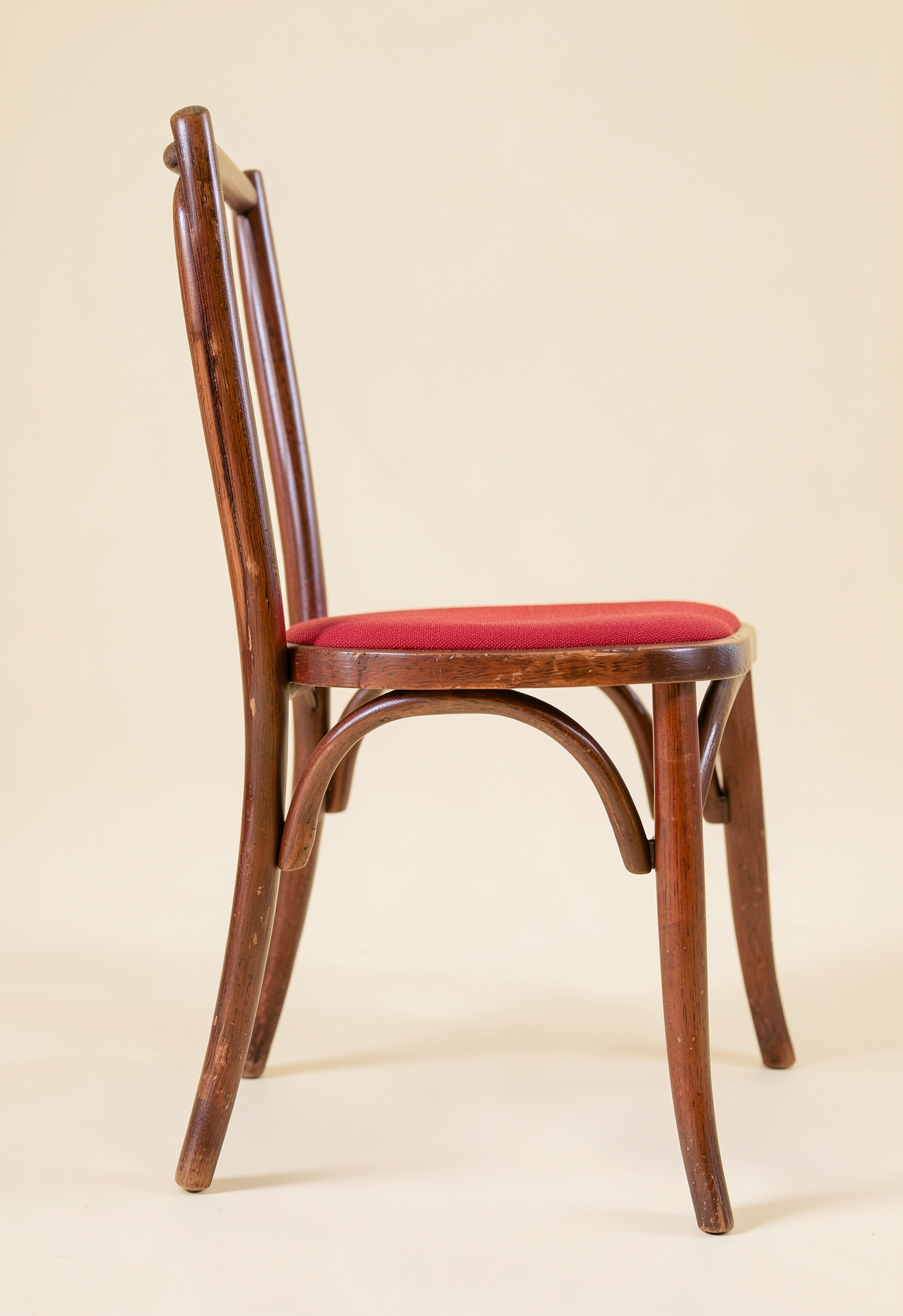
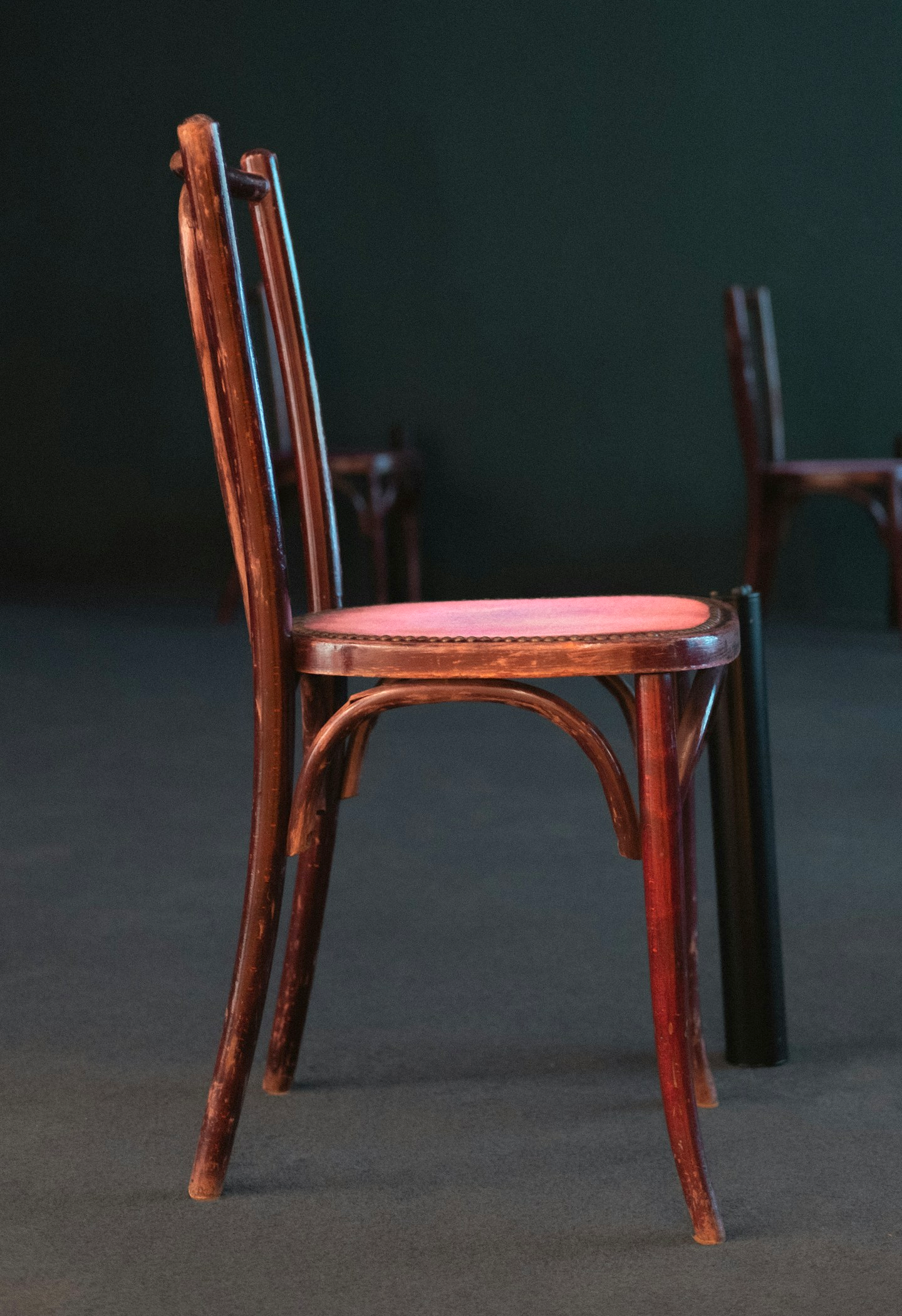
AI reimagines the whole image and can change fine details. Compare the result before using it for a product listing.
Light, color & filters
Find the feeling in your photo.
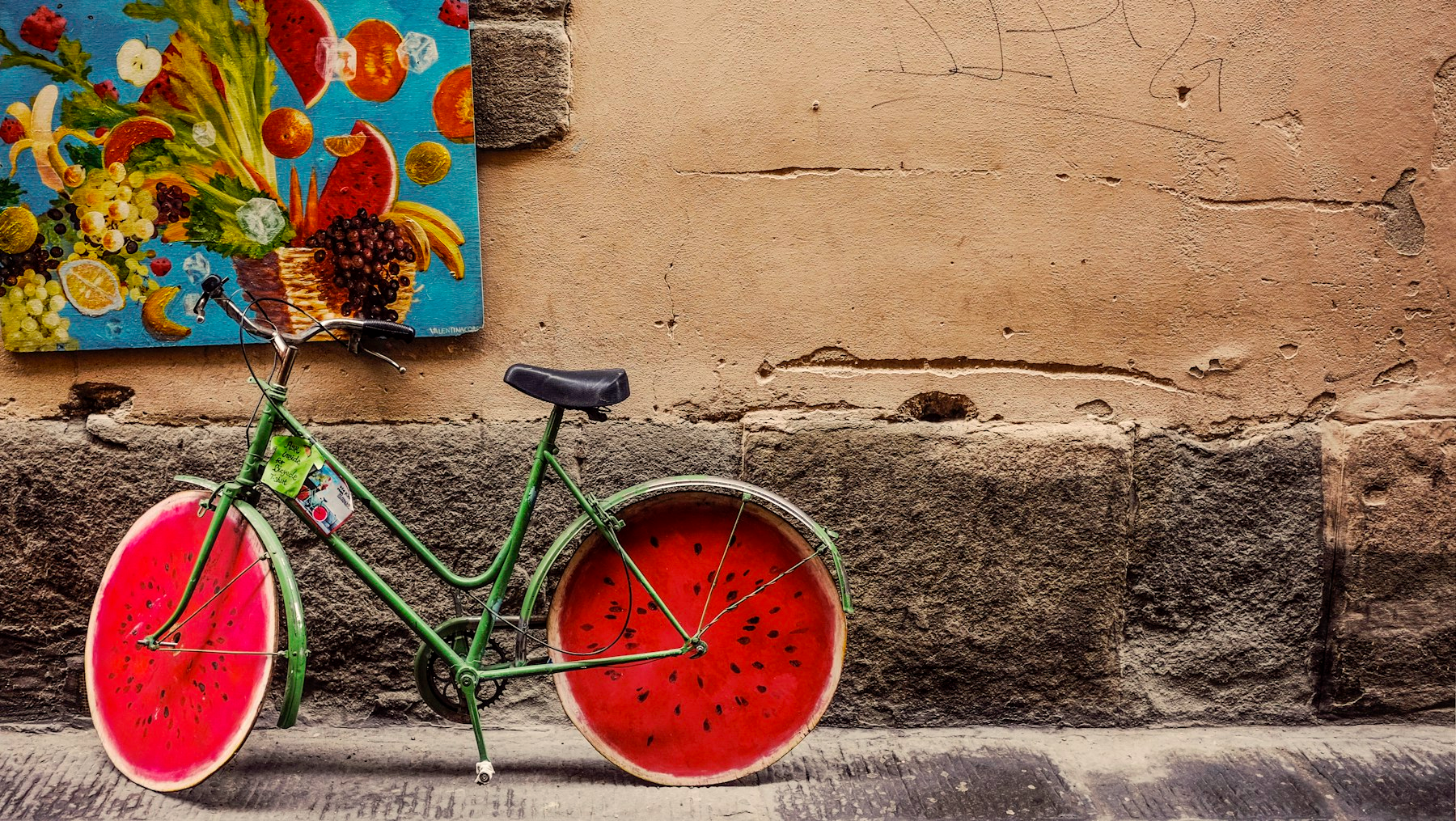
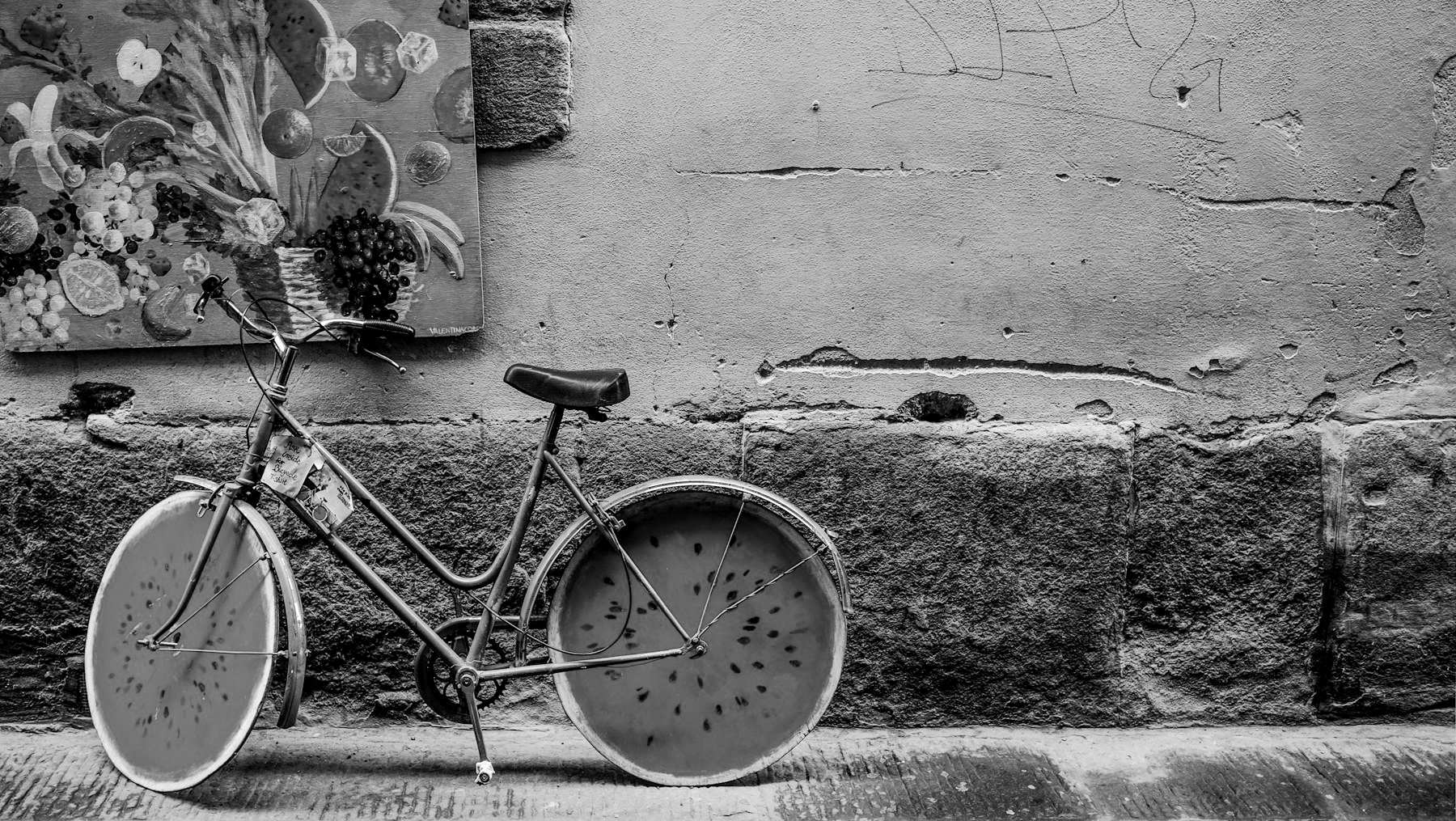
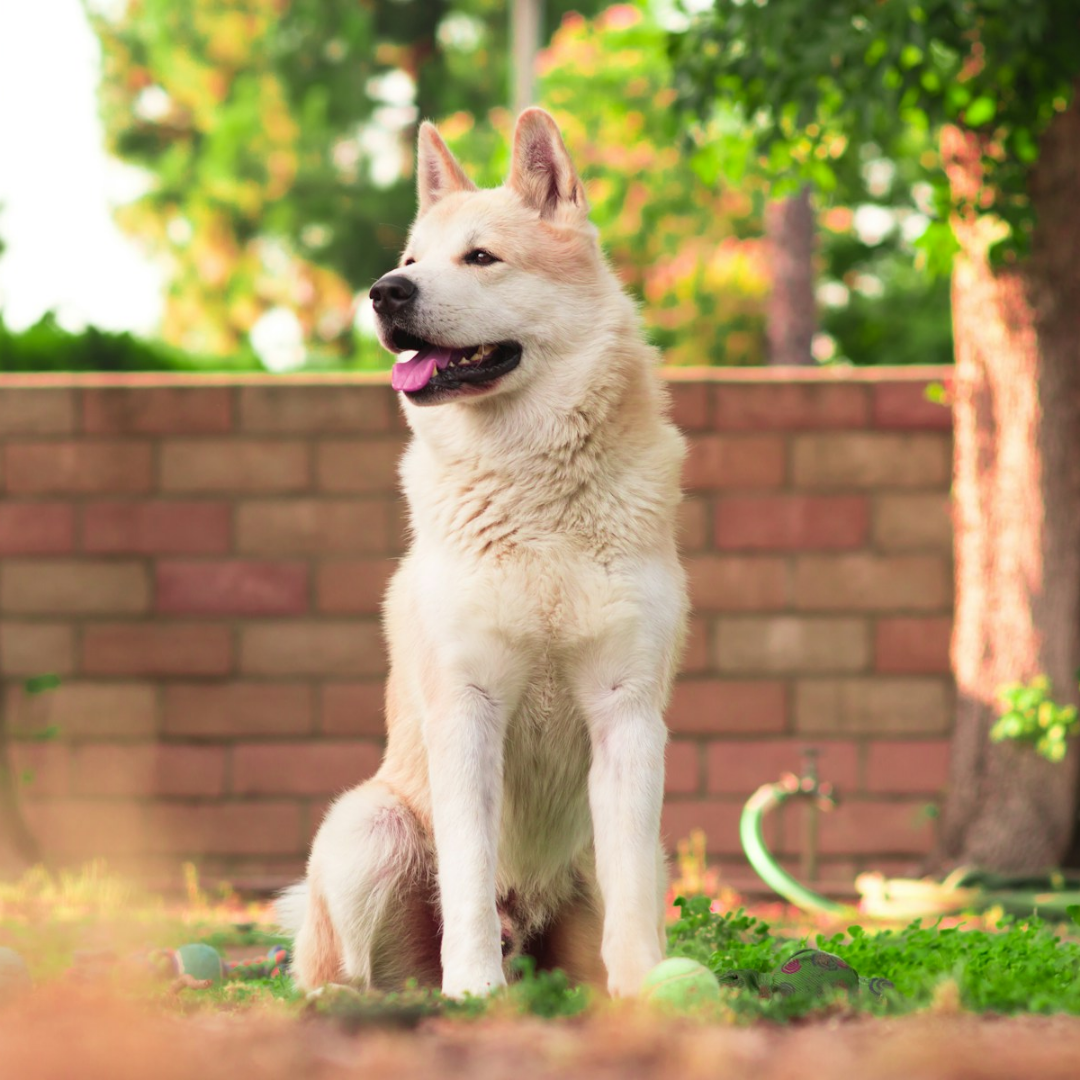
Warm · richer color, a sunnier feelMono · let light and texture lead
Bring a dark photo back to life, soften harsh highlights or warm up a cool scene. Start with a filter, then fine-tune exposure, contrast and color until the mood feels right.
Need a lighter touch? Brush an adjustment onto one area, or use blur and pixelation where you want less detail.
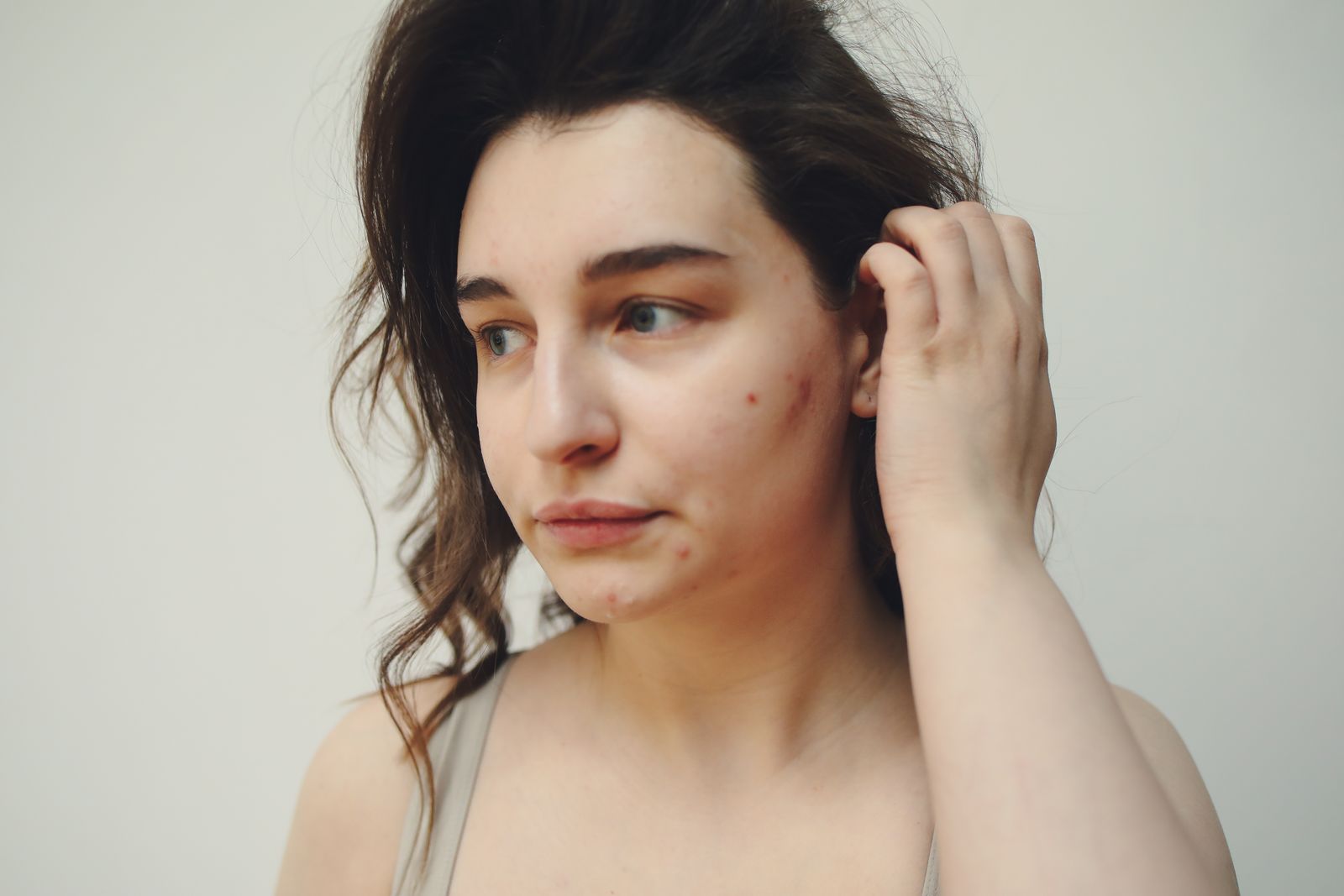
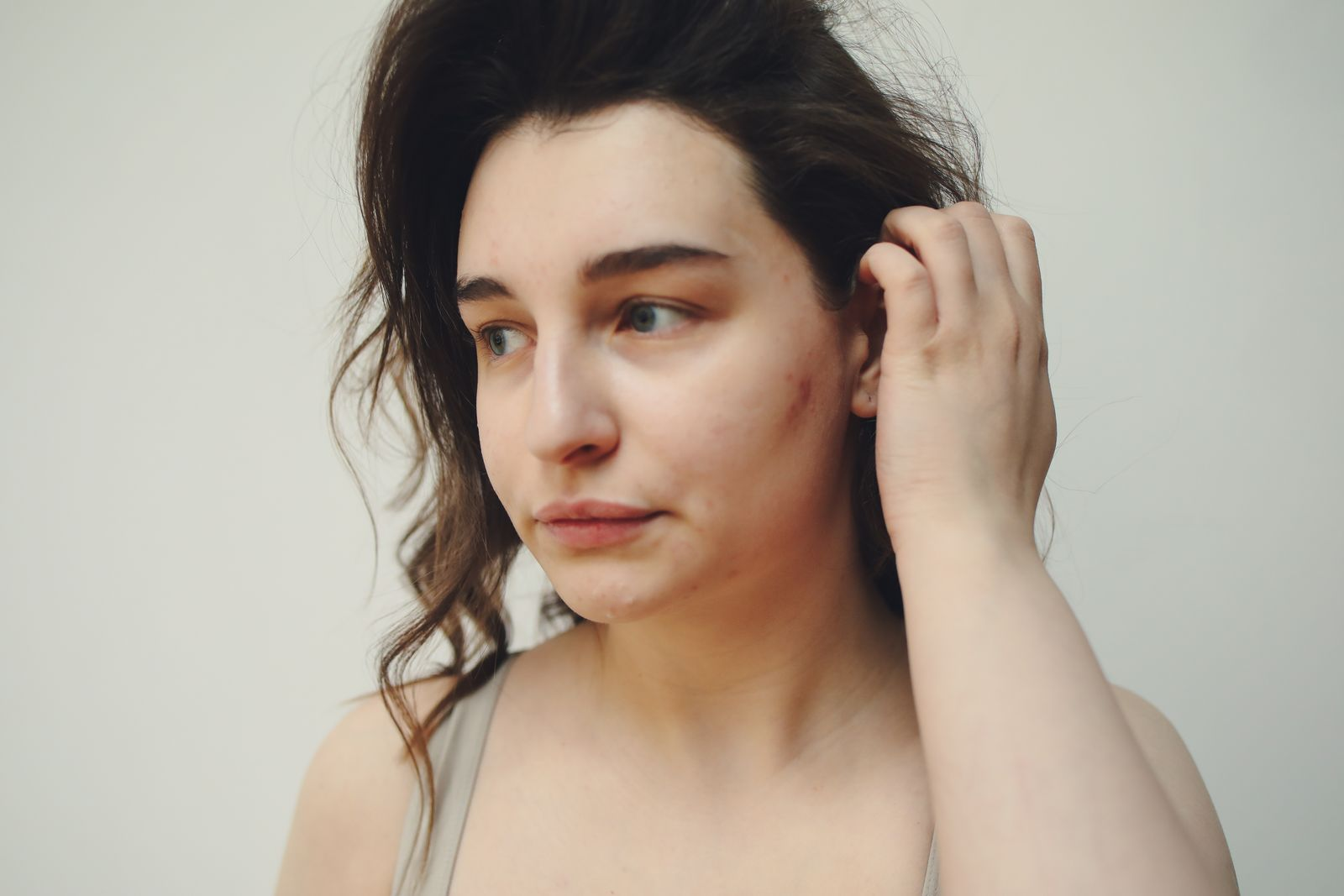
A small blemish or stray mark doesn't have to distract from a good portrait. Zoom in and use Spot Repair on individual spots, keeping the surrounding skin texture in view.
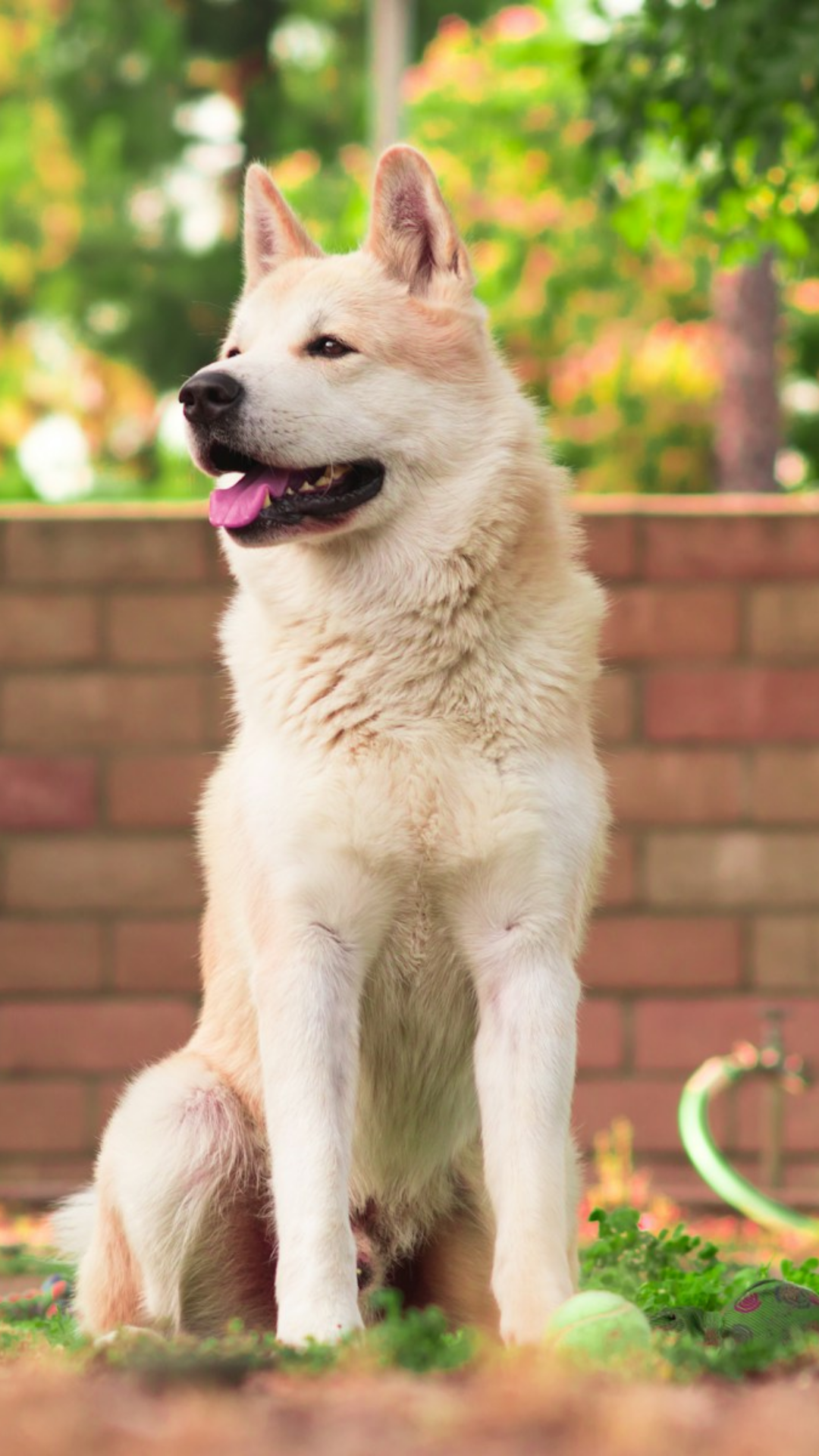
A square for your feedA story that fills the screen
Put your subject where it belongs. Crop away distractions, straighten a tilted shot, rotate or flip the frame, then choose the dimensions for your next post, listing or print.
Turn a favorite shot into an invitation, a personal postcard or a post worth sharing. Give your words room to breathe, choose their color and size, and move them into place.
Add a shape, draw a handwritten mark or place another image. Save an editable Creation when you want to change the words or rearrange the details later.
A good edit can happen in a few small moves. Adjust the light, find the crop, then add the words. Your changes stay together as you move between tools.
When it feels right, choose how you want to keep it. You can download a finished picture and save an editable version of the same work.
For sharing now
Download the photo you love.
Take a finished image to your group chat, social feed or next project. Your crop, color changes and additions are included in the download.
For your next edit
Keep the words and details editable.
Sign in and save to Creations. Come back to change a caption, move a shape or try another adjustment, with your original photo still available.
From brightening a dark photo to keeping your text editable, find the right approach for the picture you have in mind. The Help Center has more on getting started, saving and troubleshooting.
Editing your photo
Can I use the online photo editor for free?+
Yes. Crop and resize photos, adjust light and color, apply filters, repair small spots, reduce noise, sharpen details, and add text or drawings for free. You can use these tools and download without an account. AI photo editing requires sign-in and Credits, with the cost shown before you generate.
Open your photo and choose Describe edit. Say what you want to change, such as the setting, lighting or overall look, and mention details you want to keep. AI makes a new version of the whole image, so faces, textures, proportions and lettering can still change. Compare the result with your original. For guided creative transformations, you can also explore Image-to-Image.
How can I brighten a dark photo without washing it out?+
Raise Exposure a little at a time, watching the brightest parts of the photo. If only the dark areas need help, lift Shadows instead. Reduce Highlights when bright skin, clouds or windows start losing detail. Finish with a small contrast adjustment and compare with the original before adding more.
How do I retouch a portrait and keep it looking natural?+
Zoom in and use Spot Repair on individual blemishes or small marks. Keep the brush close to the size of the spot, then check the repair at normal viewing size. Work in small steps and undo anything that makes skin texture look smeared. Spot Repair suits isolated imperfections; it is not a face-reshaping or all-over skin-smoothing tool.
Sharpen can give soft edges more definition, while Denoise can reduce distracting grain. Use both gently: too much sharpening creates harsh edges, and too much noise reduction removes texture. These tools cannot recover detail that was never captured or fully fix an out-of-focus photo. Increasing image dimensions with Resize does not add new detail.
How do I crop and resize photos for social media?+
Choose the composition first: a square can suit a feed post, while a vertical crop gives a story more height. Move the crop to keep your subject in view, and straighten or rotate if needed. Then use Resize to set the output dimensions. Check the preview so faces, text and other important details stay inside the frame.
Yes. Use Add to place text, choose its size and color, and move it into your composition. Sign in and save to Creations to keep the text, shapes and other additions editable. Reopen that Creation to change the wording or layout. A downloaded PNG, JPG or WebP is a finished image: its text is no longer a separate editable object.
Sign in from the editor to return to the same photo and edits in the same browser, including your text and additions. Then choose Save to Creations to keep the work in your account. Signing in alone does not save it there. If the editor reports a browser storage problem, download your work before leaving the page.
Opening a photo and using crop, filters, Spot Repair or the other free editing tools keeps your work on this device. The required images are uploaded when you explicitly save to Creations or run an AI edit. Signing in alone does not upload your photo. Keep a download or saved Creation for anything important, because browser drafts can be cleared.
Open JPG, PNG or WebP photos up to 10 MiB; dimension and total-pixel limits also apply. Export as PNG when you want a lossless image, or choose JPG or WebP for a compressed copy. PNG and WebP support transparency; JPG puts transparent areas on white. Resize before downloading when you need specific dimensions.
Brighten a memory, give a portrait a thoughtful touch-up, or turn a quick snapshot into something to share. Open your photo and make the first change. The next one is up to you.